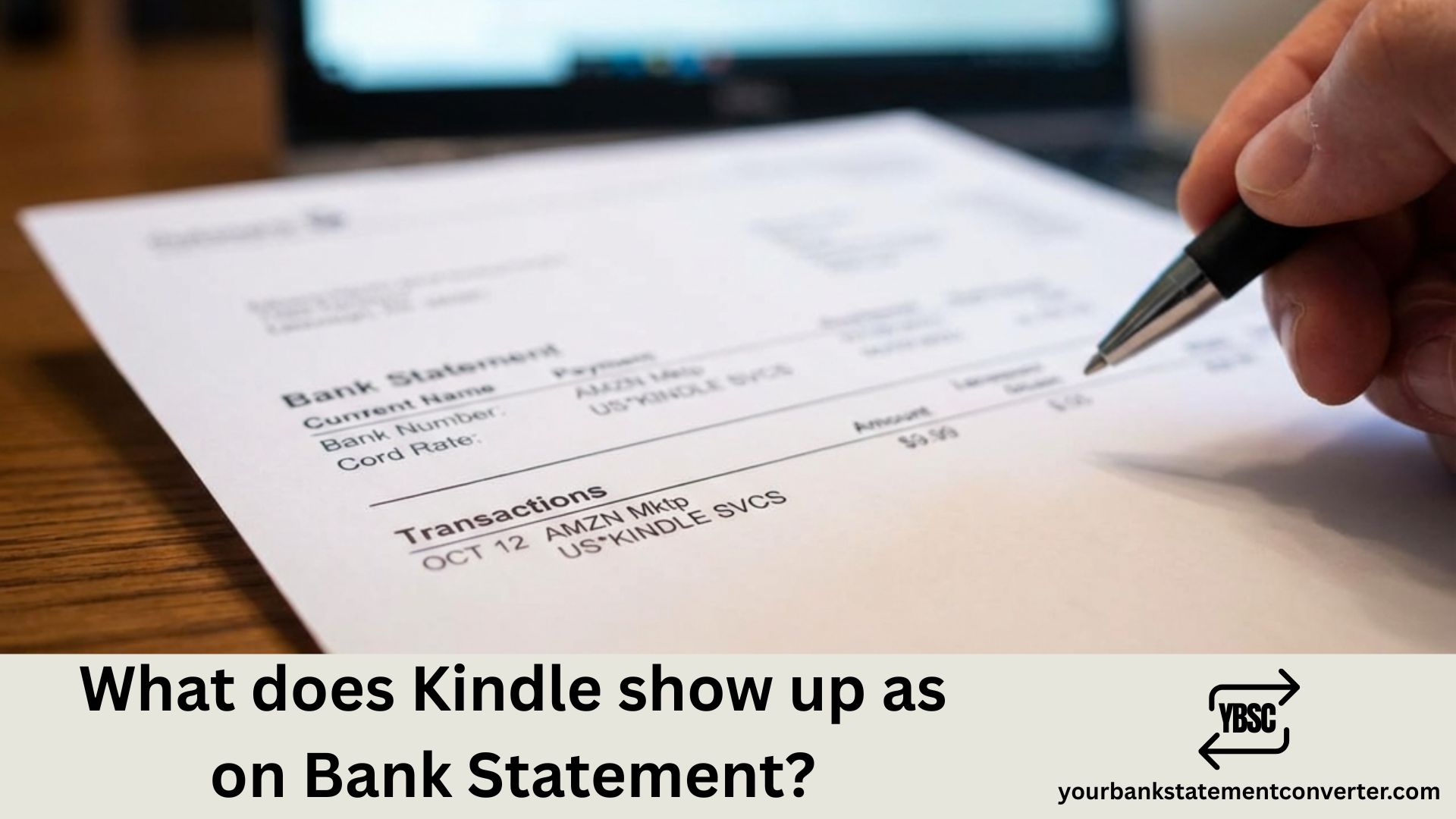
Noticed an unexpected Amazon charge and wondering if it’s from your Kindle? Whether you’re purchasing e-books, subscribing to Kindle Unlimited, or buying a Kindle device, these transactions can appear under various names on your bank statement. This guide breaks down exactly what Kindle charges look like and how to identify them on your statement.
What Does Kindle Show Up as on a Bank Statement?
Kindle purchases and subscriptions typically appear on your bank or credit card statement under these common descriptors:
- AMAZON.COM*KINDLE – The most common descriptor for Kindle e-book purchases
- AMZN.COM/BILL*KINDLE – Standard Amazon billing format for Kindle
- KINDLE UNLIMITED – Specifically for Kindle Unlimited subscription charges
- AMAZON.COM*KINDLEUNLTD – Abbreviated Kindle Unlimited descriptor
- AMZN DIGITAL*KINDLE – Digital content purchases through Kindle
- AMAZON DIGITAL SVCS – Generic Amazon digital services charge
- AMZN.COM/BILLWA – Amazon billing with Washington state identifier
- AMAZON.COM*DIGITAL – General digital purchase descriptor
- PRIME READING – For Prime members accessing free Kindle books
- AMZN MKTP US*KINDLE – Amazon Marketplace Kindle purchase
Kindle Unlimited costs $11.99/month. Individual e-book prices vary from $0.99 to $14.99 or more. Kindle device purchases range from $99 to $339 depending on the model.
Why Kindle Charges May Look Different on Your Statement
Amazon uses multiple billing descriptors depending on the type of purchase, your location, and your payment method. E-book purchases often show differently than subscription charges, and Kindle device purchases may appear as general Amazon Marketplace transactions.
Character limits on bank statements also cause truncation, which is why “AMAZON.COMKINDLEUNLIMITED” might appear as simply “AMZNKINDLE” or “AMAZON DIGITAL” on your statement.
How to Verify a Kindle Charge Is Legitimate
To confirm that a Kindle or Amazon charge on your bank statement is authentic:
- Log into your Amazon account at amazon.com
- Go to “Account & Lists” > “Your Orders”
- Filter by “Digital Orders” to see Kindle purchases
- Check “Memberships & Subscriptions” for Kindle Unlimited
- Match transaction dates and amounts with your bank statement
- Review your email for Amazon order confirmations
If you find an unrecognized charge, check if family members linked to your Amazon Household made purchases, or if you have one-click ordering enabled that may have triggered an accidental purchase.
Need to Track and Organize Your Bank Statements?
Managing multiple Amazon and Kindle charges becomes much simpler when your bank statements are in an organized, searchable format. If you need to convert your PDF bank statements to Excel, CSV, or other formats for better expense tracking, our free online bank statement converter offers a fast and secure solution.
With our bank statement converter, you can:
- Convert PDF bank statements to editable spreadsheets
- Search and filter for all Amazon and Kindle charges instantly
- Track your e-book spending and subscription costs
- Organize digital purchase history for budgeting purposes
The tool supports statements from all major banks and provides accurate data extraction for personal finance management and expense reporting.
How to Cancel or Manage Your Kindle Unlimited Subscription
If you want to stop Kindle Unlimited charges from appearing on your bank statement:
- Go to amazon.com and sign into your account
- Navigate to “Account & Lists” > “Memberships & Subscriptions”
- Find “Kindle Unlimited” in your subscriptions
- Click “Manage Subscription”
- Select “Cancel Kindle Unlimited”
You’ll continue to have access to Kindle Unlimited until your current billing period ends. Downloaded books will be removed from your library after cancellation.
How to Prevent Accidental Kindle Purchases
To avoid unexpected Kindle charges on your bank statement:
- Disable one-click purchasing in your Amazon account settings
- Set up parental controls on Kindle devices
- Enable purchase confirmation requirements
- Remove stored payment methods if needed
- Review Amazon Household member permissions
Understanding Kindle Bank Statement Charges: Key Takeaways
Knowing what Kindle charges look like on your bank statement is essential for tracking your e-book expenses and identifying any unauthorized purchases. The most common descriptors include AMAZON.COM*KINDLE, AMZN DIGITAL*KINDLE, and KINDLE UNLIMITED. Always verify charges through your Amazon order history, and use tools like our free bank statement converter to convert and organize your bank statements for easier financial tracking. By understanding how Kindle transactions appear on your bank statement, you can stay on top of your digital reading expenses and manage your Amazon subscriptions effectively.
Frequently Asked Questions
For the other entries on your statement, our guide to bank statement abbreviations explains the type codes, and what is on a bank statement covers the header, balances and transaction table.
What does Kindle Unlimited charge look like on a credit card statement?
Kindle Unlimited typically appears as KINDLE UNLIMITED, AMAZON.COMKINDLEUNLTD, AMZN DIGITALKINDLE, or AMAZON DIGITAL SVCS on credit card statements. The charge is $11.99 per month and may include a location identifier like “WA” for Washington state.
Why is Amazon charging me for Kindle?
Amazon may charge you for Kindle due to an active Kindle Unlimited subscription, e-book purchases (including one-click buys), Kindle device purchases, or automatic renewals. Check your Amazon Digital Orders and Memberships & Subscriptions to identify the source of the charge.
How much does Kindle Unlimited cost per month?
Kindle Unlimited costs $11.99 per month and provides unlimited access to over 4 million e-books, audiobooks, and magazines. Amazon occasionally offers promotional rates for new subscribers, such as free trials or discounted first months.
Can I get a refund for Kindle purchases?
Amazon allows refunds for accidental Kindle e-book purchases within 7 days if you haven’t read a significant portion. Go to “Your Orders,” find the e-book, and select “Return for Refund.” Kindle Unlimited subscription refunds are handled case-by-case through Amazon customer service.
How do I stop Amazon from charging me for Kindle?
To stop Kindle charges, cancel your Kindle Unlimited subscription through “Memberships & Subscriptions” in your Amazon account. To prevent e-book purchases, disable one-click ordering and remove stored payment methods. You can also set up purchase confirmations for added security.
What is AMZN DIGITAL on my bank statement?
AMZN DIGITAL or AMAZON DIGITAL SVCS is a billing descriptor for digital content purchases from Amazon, including Kindle e-books, Audible audiobooks, Amazon Music, Prime Video rentals, and app purchases. Check your Amazon Digital Orders to see what specific items were purchased.
How can I better track my Kindle and Amazon spending?
To better track Kindle and Amazon spending, use YourBankStatementConverter.com to convert your PDF bank statements into Excel or CSV format. This allows you to quickly search for “AMZN,” “Amazon,” or “Kindle,” filter charges by date or amount, and analyze your digital spending patterns in an organized spreadsheet.