What Does Duolingo Show Up as on Bank Statement?
Spotted an unfamiliar charge on your bank statement and wondering if it’s from Duolingo? Whether you subscribed to Super Duolingo, started a free trial, or a family member signed up without telling you, identifying Duolingo charges can be tricky—especially when they don’t always appear directly as “Duolingo.” This guide explains exactly how Duolingo transactions show up on your bank statement, the different variations you’ll see, and how to verify if a charge is legitimate.
Key Takeaways
- Duolingo charges typically appear as “DUOLINGO,” “DUOLINGO INC,” or “DUOLINGO.COM” if you subscribed through their website.
- If you subscribed to Super Duolingo through an iPhone or iPad, Apple processes the payment on Duolingo’s behalf.
- Super Duolingo costs $12.99/month for the monthly plan or approximately $7/month if you pay annually ($83.99/year).
- You likely started a free trial that automatically converted to a paid subscription when the trial ended.
- Duolingo typically doesn’t offer refunds for current billing periods, but you can request one through Apple or Google if you subscribed via their app stores.
What Does Duolingo Show Up as on Bank Statement?
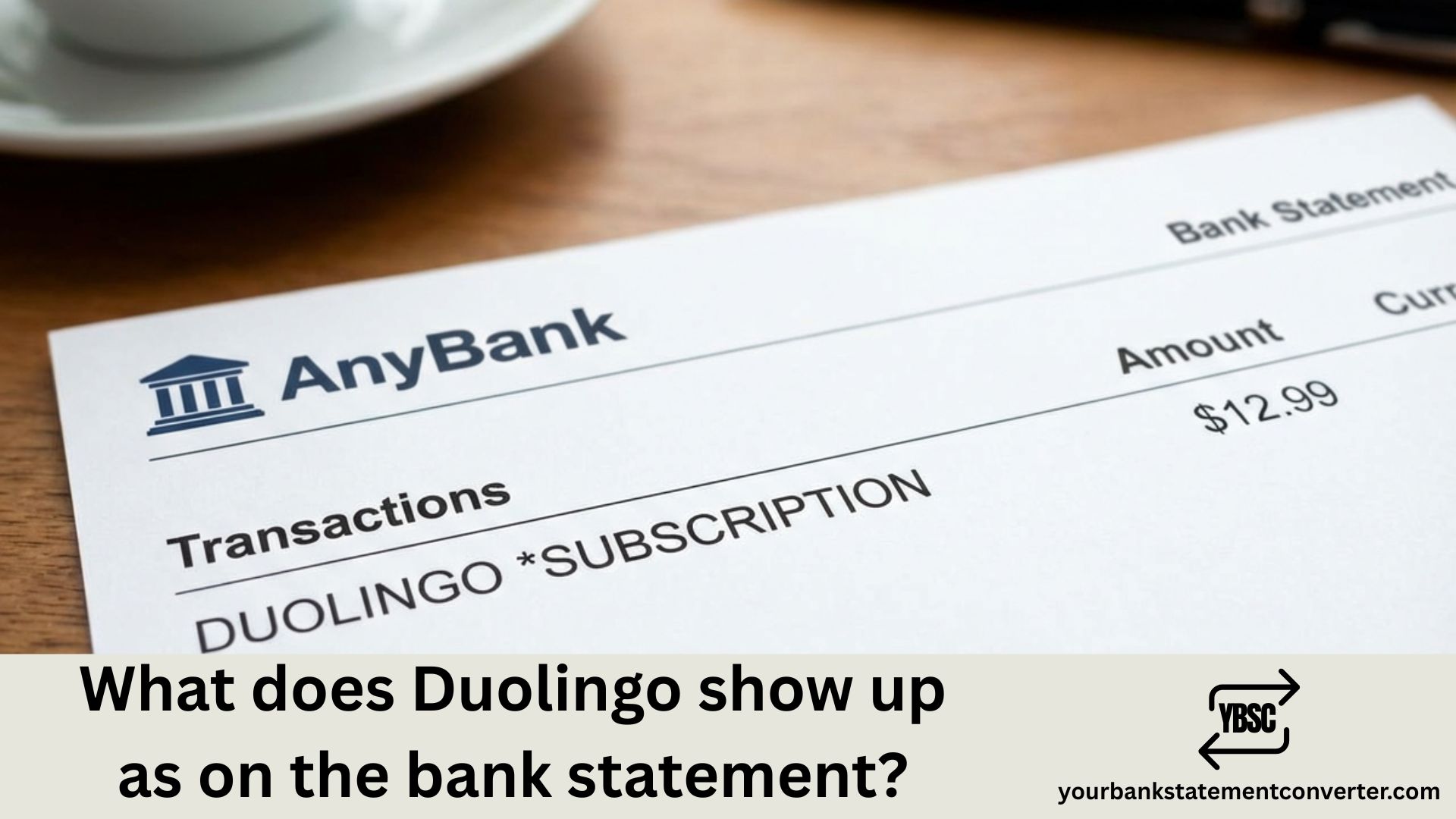
Duolingo charges can appear in several different formats on your bank or credit card statement, depending on how you subscribed (through the app, website, or app store) and your payment method. Here are the most common Duolingo bank statement descriptors:
Direct Duolingo Charges (Website Subscription)
If you subscribed directly through Duolingo’s website, the charge typically appears as:
- DUOLINGO
- DUOLINGO INC
- DUOLINGO.COM
- DUOLINGO SUBSCRIPTION
- DUOLINGO PREMIUM
- DUOLINGO PAYMENT
- DUOLINGOPAYMENT
- DUO-PAYMENT
Apple App Store Subscriptions (iPhone/iPad)
If you subscribed through an iOS device, charges appear through Apple, not Duolingo:
- APPLE.COM/BILL
- APPLE.COM/BILL 866-712-7753
- APPLE COM/US
- APPLE ITUNES + location
Google Play Store Subscriptions (Android)
Android users who subscribed through the Play Store will see:
- *GOOGLE DUOLINGO
- GOOGLE PLAY or GOOGLE*PLAY
- *GOOGLE SERVICES
- GOOGLEPLAY*DUOLINGO
Why Duolingo Charges Appear Under Different Names
The merchant name on your bank statement depends entirely on how you originally subscribed to Duolingo:
Subscribed via Duolingo.com? You’ll see “DUOLINGO” or variations like “DUOLINGO INC” directly on your statement.
Subscribed via iPhone/iPad? Apple processes the payment, so charges appear as “APPLE.COM/BILL” with no mention of Duolingo. You’ll need to check your Apple ID subscriptions to confirm it’s for Duolingo.
Subscribed via Android? Google handles the billing, showing “GOOGLE *DUOLINGO” or “GOOGLE PLAY” on your statement.
This is why many people see unfamiliar charges—they forgot which platform they used to subscribe and don’t recognize Apple or Google as the merchant.
Common Duolingo Bank Statement Variations
Here’s a quick reference table of how Duolingo charges appear based on subscription method:
| Subscription Method | Bank Statement Name |
|---|---|
| Duolingo Website | DUOLINGO, DUOLINGO INC, DUOLINGO.COM |
| Apple App Store (iOS) | APPLE.COM/BILL, APPLE ITUNES |
| Google Play (Android) | GOOGLE *DUOLINGO, GOOGLE PLAY |
| Family Plan | Same as above (based on plan owner) |
| Duolingo English Test | DUOLINGO, DUOLINGO INC |
Understanding Duolingo Subscription Pricing
Knowing Duolingo’s pricing helps you verify if a charge amount matches a legitimate subscription:
Super Duolingo (formerly Duolingo Plus):
- Monthly: $12.99/month
- Annual: $83.99/year (approximately $7/month)
- Family Plan: $119.99/year (up to 6 users)
Duolingo Max:
- Monthly: $29.99/month
- Annual: $167.99/year
Duolingo English Test:
- Per test: $65 (one-time purchase)
If your charge doesn’t match these amounts (accounting for taxes), investigate further.
How to Verify a Duolingo Charge on Your Statement
Not sure if that charge is legitimate? Follow these verification steps based on how you might have subscribed:
Check Your Duolingo Account
- Log into duolingo.com or the Duolingo app
- Click your profile icon → Settings
- Select “Super Duolingo” or “Subscription”
- View your subscription status and billing history
Check Apple Subscriptions (iOS Users)
- Open Settings on your iPhone/iPad
- Tap your name at the top
- Tap “Subscriptions”
- Look for Duolingo in the list
Check Google Play Subscriptions (Android Users)
- Open the Google Play app
- Tap your profile icon
- Tap “Payments & subscriptions” → “Subscriptions”
- Look for Duolingo
Search Your Email
Look for receipts from:
- Duolingo (noreply@duolingo.com)
- Apple (no_reply@email.apple.com)
- Google Play (googleplay-noreply@google.com)
Managing Bank Statements with Subscription Charges
Tracking multiple subscriptions like Duolingo—alongside dozens of other recurring charges—can get overwhelming. If you need to review, categorize, or convert your bank statements for budgeting, expense tracking, or tax purposes, Your Bank Statement Converter simplifies the entire process.
Why use YourBankStatementConverter.com?
- Convert PDF bank statements to Excel, CSV, or other searchable formats
- Easily filter and find subscription charges like Duolingo, Apple, or Google
- Perfect for tracking recurring expenses and identifying forgotten subscriptions
- Ideal for freelancers, accountants, and anyone managing multiple accounts
Stop scrolling through pages of transactions looking for “APPLE.COM/BILL” or “GOOGLE *DUOLINGO.” Convert your statements once and search instantly.
👉 Try Your Bank Statement Converter Today
Common Reasons for Unexpected Duolingo Charges
If you see a Duolingo charge you don’t recognize, here are the most likely explanations:
1. Free trial converted to paid subscription. Duolingo offers free trials that automatically convert to paid subscriptions. If you didn’t cancel before the trial ended, you’ll be charged.
2. Family member subscribed. A child, spouse, or family member may have signed up using your payment method linked to their device’s app store account.
3. Annual subscription renewed. Annual plans auto-renew unless canceled. An $84 or $168 charge appearing once a year can be easy to forget.
4. Multiple accounts exist. You might have separate Duolingo accounts (different emails) with active subscriptions on each.
5. Subscription through different platform. You may have subscribed via the website but are looking in your Apple/Google subscriptions, or vice versa.
How to Cancel Duolingo Subscription Charges
To stop future Duolingo charges, you must cancel through the same platform you originally subscribed:
Cancel via Duolingo Website
- Log into duolingo.com
- Go to Settings → Super Duolingo
- Click “Cancel Subscription”
- Confirm cancellation
Cancel via Apple (iOS)
- Open Settings → Your Name → Subscriptions
- Find Duolingo
- Tap “Cancel Subscription”
Cancel via Google Play (Android)
- Open Google Play → Profile → Payments & subscriptions
- Tap Subscriptions
- Find Duolingo → Cancel
Important: Canceling doesn’t provide refunds for the current billing period. You’ll retain access until your subscription expires.
Disputing an Unauthorized Duolingo Charge
If you’ve verified there’s no active subscription and believe the charge is unauthorized:
1. Contact Duolingo Support
- Visit: support.duolingo.com
- Submit a bug report with transaction details
2. Request Refund Through App Store
For Apple:
- Go to reportaproblem.apple.com
- Sign in with your Apple ID
- Find the charge and request a refund
For Google Play:
- Visit play.google.com/store/account
- Click “Order History”
- Find the charge and request a refund
3. Dispute with Your Bank
If Duolingo and the app store don’t resolve the issue:
- Contact your bank’s fraud department
- Provide transaction details and documentation
- File a chargeback dispute
Duolingo Pending Charges and Authorization Holds
Sometimes you’ll notice a Duolingo-related charge appear as “pending” before it officially posts. Here’s what to know:
Authorization holds occur when Duolingo (or Apple/Google) verifies your payment method. These temporary holds:
- May appear immediately after starting a trial or subscription
- Could show small amounts ($0.00 to $1.00) as verification charges
- Typically clear within 3-5 business days
- Are replaced by the actual posted charge
If you see both a pending and posted charge, wait a few days—the pending authorization usually drops off automatically.
Conclusion: Identifying Duolingo Charges on Your Bank Statement
Duolingo charges appear on bank statements as “DUOLINGO,” “DUOLINGO INC,” or “DUOLINGO.COM” when subscribed directly through their website. However, if you subscribed via the App Store or Google Play, charges appear as “APPLE.COM/BILL” or “GOOGLE *DUOLINGO” respectively—making them harder to identify at first glance.
To verify any Duolingo transaction, check your subscription status within the Duolingo app, your Apple ID subscriptions (for iOS), or Google Play subscriptions (for Android). Match the charge amount to Duolingo’s current pricing, and search your email for payment receipts.
For easier subscription tracking and bank statement management, our bank statement to CSV converter helps you convert and organize your financial documents—making it simple to search, filter, and identify recurring charges like Duolingo across all your accounts.
Frequently Asked Questions (FAQs)
What does a Duolingo charge look like on a credit card statement?
Duolingo charges typically appear as “DUOLINGO,” “DUOLINGO INC,” or “DUOLINGO.COM” if you subscribed through their website. If you subscribed via iPhone, it shows as “APPLE.COM/BILL.” For Android users, it appears as “GOOGLE *DUOLINGO” or “GOOGLE PLAY.”
Why does my bank statement show Apple instead of Duolingo?
If you subscribed to Super Duolingo through an iPhone or iPad, Apple processes the payment on Duolingo’s behalf. All App Store subscriptions appear as “APPLE.COM/BILL” on your statement. To verify it’s for Duolingo, check Settings → Your Name → Subscriptions on your iOS device.
How much does Duolingo charge per month?
Super Duolingo costs $12.99/month for the monthly plan or approximately $7/month if you pay annually ($83.99/year). Duolingo Max costs $29.99/month or $167.99/year. Family plans cost $119.99/year for up to 6 users.
Why am I being charged for Duolingo when I have the free version?
You likely started a free trial that automatically converted to a paid subscription when the trial ended. Alternatively, a family member may have subscribed using your payment method. Check your Duolingo account, Apple subscriptions, or Google Play subscriptions to find the active plan.
Can I get a refund for a Duolingo subscription?
Duolingo typically doesn’t offer refunds for current billing periods, but you can request one through Apple or Google if you subscribed via their app stores. Visit reportaproblem.apple.com (Apple) or play.google.com/store/account (Google) to submit a refund request within 48 hours of the charge.
What is “GOOGLE *DUOLINGO” on my bank statement?
“GOOGLE *DUOLINGO” indicates a Duolingo subscription payment processed through Google Play. This appears when you subscribed to Super Duolingo or Duolingo Max through the Android app rather than directly through Duolingo’s website.
How do I stop Duolingo from charging my card?
Cancel your subscription through the same platform you originally subscribed. For website subscriptions, go to duolingo.com → Settings → Super Duolingo → Cancel. For iOS, go to Settings → Subscriptions → Duolingo → Cancel. For Android, use Google Play → Subscriptions → Duolingo → Cancel.
Why was I charged $84 by Duolingo?
An $83.99 charge (approximately $84 with taxes) is the annual Super Duolingo subscription fee. Annual plans auto-renew unless canceled, so this charge appears once per year on your renewal date.
Does Duolingo charge if I cancel during the free trial?
No, if you cancel before the free trial ends, you won’t be charged. However, you must cancel at least 24 hours before the trial expires (for iOS subscriptions) to avoid automatic billing.
How do I find my Duolingo subscription and billing history?
Log into duolingo.com, click your profile icon, go to Settings, and select “Super Duolingo” to view your subscription status. For complete billing history, also check your Apple ID subscriptions (iOS) or Google Play subscriptions (Android) depending on how you subscribed.