
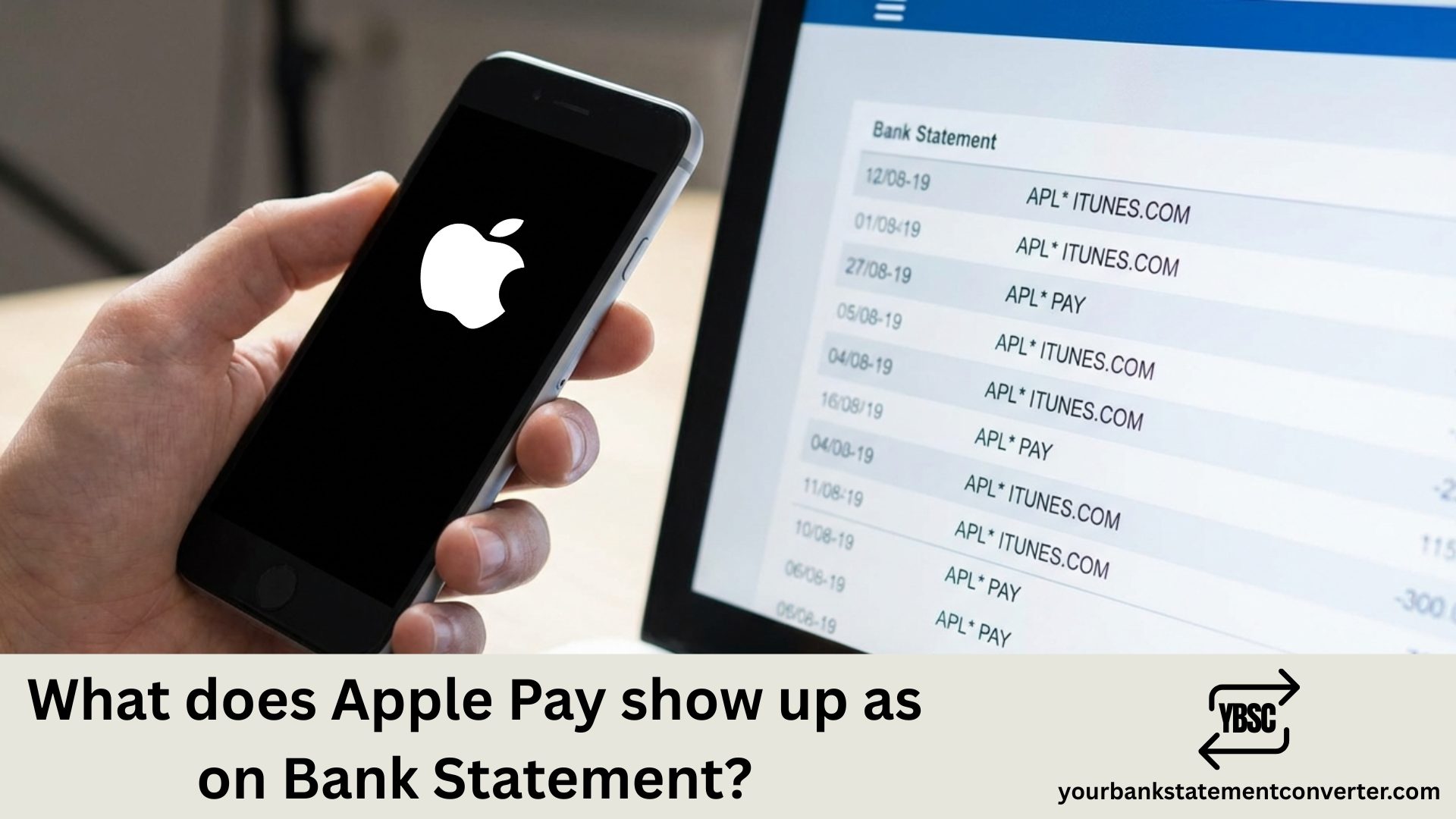
Apple Pay transactions typically appear on your bank statement with the merchant name followed by “APPLE PAY” or similar identifiers. For example, if you bought coffee at Starbucks using Apple Pay, you might see “STARBUCKS APPLE PAY” or “APPLE PAY STARBUCKS” on your statement.
What does Apple Pay show up as on Bank Statement?
Common Apple Pay Transaction Formats
The exact format depends on your bank or card issuer, but here are typical variations:
- [Merchant Name] APPLE PAY (e.g., “TARGET APPLE PAY”)
- APPLE PAY [Merchant Name]
- APL[Merchant Name]*
- The standard merchant name with no Apple Pay indicator at all
Some financial institutions simply display the retailer name without any Apple Pay reference, making it look identical to a regular card swipe or chip transaction.
Why Apple Pay Transactions Look Different
Apple Pay uses tokenization technology for contactless payments, which replaces your actual card number with a unique Device Account Number. This digital wallet security feature means your real payment details are never shared with merchants, though the transaction still appears on your monthly statement like any other purchase.
Tracking Your Mobile Payment History
If you’re having trouble reconciling Apple Pay purchases with your bank statement entries, you can cross-reference transactions in your iPhone’s Wallet app under “Latest Transactions” for each linked card.
Need to organize or convert your bank statements for easier expense tracking? Check out YourBankStatementConverter.com — a simple tool to convert PDF bank statements into Excel or CSV format, making it effortless to categorize Apple Pay transactions and other digital payment records.



![What Is FSUK Payment on Bank Statement (Sports Direct Frasers Group)[2026]](https://yourbankstatementconverter.com/blog/wp-content/uploads/2026/03/What-Is-FSUK-Payment-on-Bank-Statement-Sports-Direct-Frasers-Group2026-300x169.jpg)
![What Does CR Mean on a Bank Statement (Credit Explained)[2026]](https://yourbankstatementconverter.com/blog/wp-content/uploads/2026/03/What-Does-CR-Mean-on-a-Bank-Statement-Credit-Explained2026-300x169.jpg)
![What Does BP Mean on a Bank Statement (Both Meanings Explained)[2026]](https://yourbankstatementconverter.com/blog/wp-content/uploads/2026/03/What-Does-BP-Mean-on-a-Bank-Statement-Both-Meanings-Explained2026-1-300x169.jpg)