Managing your business finances becomes significantly easier when you can seamlessly import your bank transactions into QuickBooks Online. Whether you’re reconciling accounts, tracking expenses, or preparing for tax season, knowing how to upload bank statements correctly saves hours of manual data entry.
Key Takeaways
- QuickBooks accepts CSV, QBO, QFX and OFX, but not a PDF statement.
- A bank feed is better than manual upload where your bank supports it.
- CSV imports need the columns mapped to date, description and amount.
- Uploading the same period twice creates duplicate transactions.
- Always reconcile against the statement’s closing balance afterwards.
How to Upload Bank Statements to QuickBooks Online
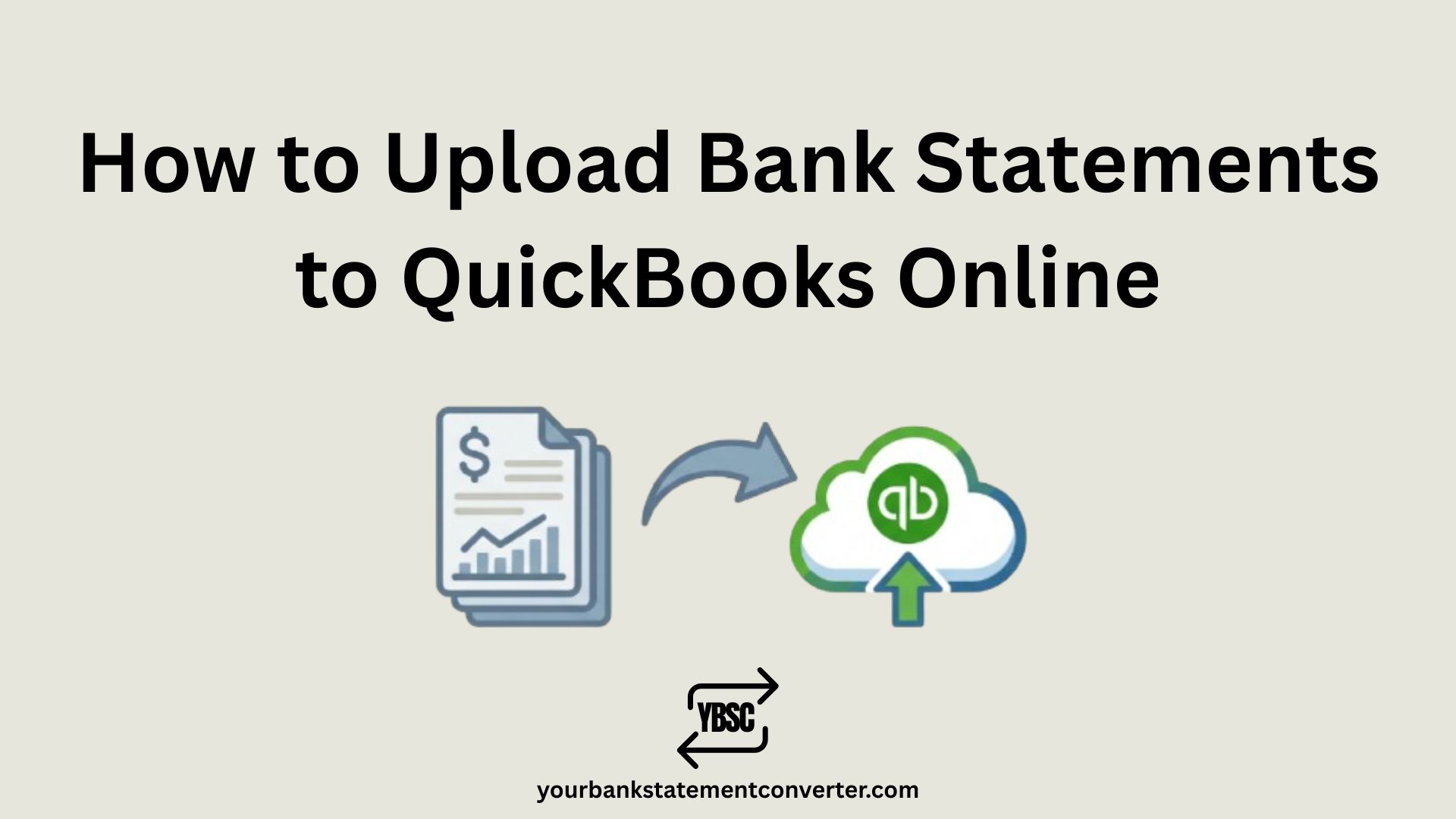
There are two primary methods to get your bank statements into QuickBooks Online: direct bank feeds and manual file uploads.
Method 1: Connect Your Bank Directly
The simplest approach is linking your bank account for automatic transaction downloads. Navigate to Banking in the left menu, click Link Account, search for your financial institution, and enter your login credentials. QuickBooks will then pull transactions automatically, typically going back 90 days.
Method 2: Manual File Upload
When direct connection isn’t available or you need historical data, manual uploads work perfectly. QuickBooks accepts QBO, QFX, OFX, and CSV file formats. Go to Banking, select Upload Transactions, choose your bank account, and upload your file. Review the imported transactions, categorize them appropriately, and add them to your register.
The CSV Challenge
Here’s where many business owners hit a roadblock. Most banks provide statements in PDF format, but QuickBooks doesn’t accept PDFs directly. Converting these documents manually is tedious and error-prone.
This is where Your Bank Statement Converter becomes invaluable. The tool instantly converts your PDF bank statements into QuickBooks-compatible formats like CSV, QBO, and OFX. Simply upload your PDF, select your output format, and download a clean file ready for QuickBooks import. It handles multiple bank formats, preserves transaction accuracy, and eliminates the formatting headaches that often cause import failures.
Tips for Successful Uploads
Ensure your file date range doesn’t overlap with existing transactions to avoid duplicates. Always review imported transactions before accepting them into your books. Match transactions to existing invoices or expenses when prompted for cleaner records.
Frequently Asked Questions
Unfamiliar entries are rarely a sign of anything wrong. Our guide to what the abbreviations on a bank statement mean decodes the type codes, and what is on a bank statement explains how each section of the page fits together.
Why QuickBooks Will Not Take a PDF
This is the thing that stops most people before they start.
A PDF is a picture of a table, not a table. QuickBooks needs structured rows it can map to fields, which is why it accepts CSV, QBO, QFX and OFX but rejects the statement your bank actually gives you.
Converting the PDF to a spreadsheet first is therefore the missing step, and our bank statement converter exists precisely for it: PDF in, clean columns out, ready to map.
Getting the CSV Columns Right
QuickBooks needs three things at minimum, and the import fails or misreads without them.
- Date, in a consistent format. Mixed UK and US date orders are the most common cause of a mangled import
- Description, the merchant or reference
- Amount, either one signed column or separate debit and credit columns
Check the date format before importing rather than afterwards. A file where 01/05 means 1 May in some rows and 5 January in others is far harder to unpick once it is in the ledger.
Avoiding Duplicate Transactions
Duplicates are the most common mess, and they are easier to prevent than to clean up.
Check the date range of what is already in QuickBooks before uploading. Overlapping periods import the same transactions twice.
Do not mix a bank feed with manual uploads for the same account and period.
Review the import preview, which flags likely duplicates before you commit.
If duplicates do land, exclude them from the Banking screen rather than deleting them from the register, which is safer for reconciliation.
Reconciling Afterwards
An import is not finished until it reconciles.
Match the closing balance in QuickBooks against the closing balance on the statement. If they agree, the import is complete and correctly signed. If they differ, the usual causes are a missing row, a duplicated row, or amounts imported with the wrong sign.
Our guide to what a bank reconciliation statement is explains the document that records this, and what is on a bank statement covers where the closing balance sits on the page.
What file formats does QuickBooks Online accept for bank statement uploads?
QuickBooks Online accepts QBO, QFX, OFX, and CSV files for manual uploads. PDF files must be converted to one of these formats before importing, which you can do quickly using YourBankStatementConverter.com.
Why won’t my bank statement upload to QuickBooks?
Common reasons include incompatible file formats, incorrect date formatting in CSV files, or column headers that don’t match QuickBooks requirements. Using a dedicated converter tool ensures your file meets all formatting specifications.
Can I upload bank statements older than 90 days to QuickBooks Online?
Yes, manual file uploads allow you to import historical transactions beyond the 90-day limit of automatic bank feeds. You’ll need the statement files from your bank in a compatible format.
How do I avoid duplicate transactions when uploading bank statements?
Check the date range of your upload against existing transactions in QuickBooks. The system flags potential duplicates, but reviewing carefully before accepting transactions prevents accounting errors.
Is it safe to use third-party tools to convert bank statements?
Reputable conversion tools like Your Bank Statement Converter process files securely without storing sensitive financial data. Always verify a tool’s security practices before uploading financial documents.
How often should I upload bank statements to QuickBooks?
For accurate bookkeeping, upload or sync transactions weekly or bi-weekly. This keeps reconciliation manageable and helps you spot discrepancies or unusual charges promptly.