Noticed a strange charge on your bank statement and wondering if it’s from PlayStation? You’re not alone. Millions of gamers and parents search for this exact question every month—trying to figure out whether a transaction is a legitimate PlayStation purchase or potential fraud.
In this quick guide, we’ll show you exactly how PlayStation charges appear on your bank or credit card statement, the different variations you might encounter, and how to verify if the charge is authentic.
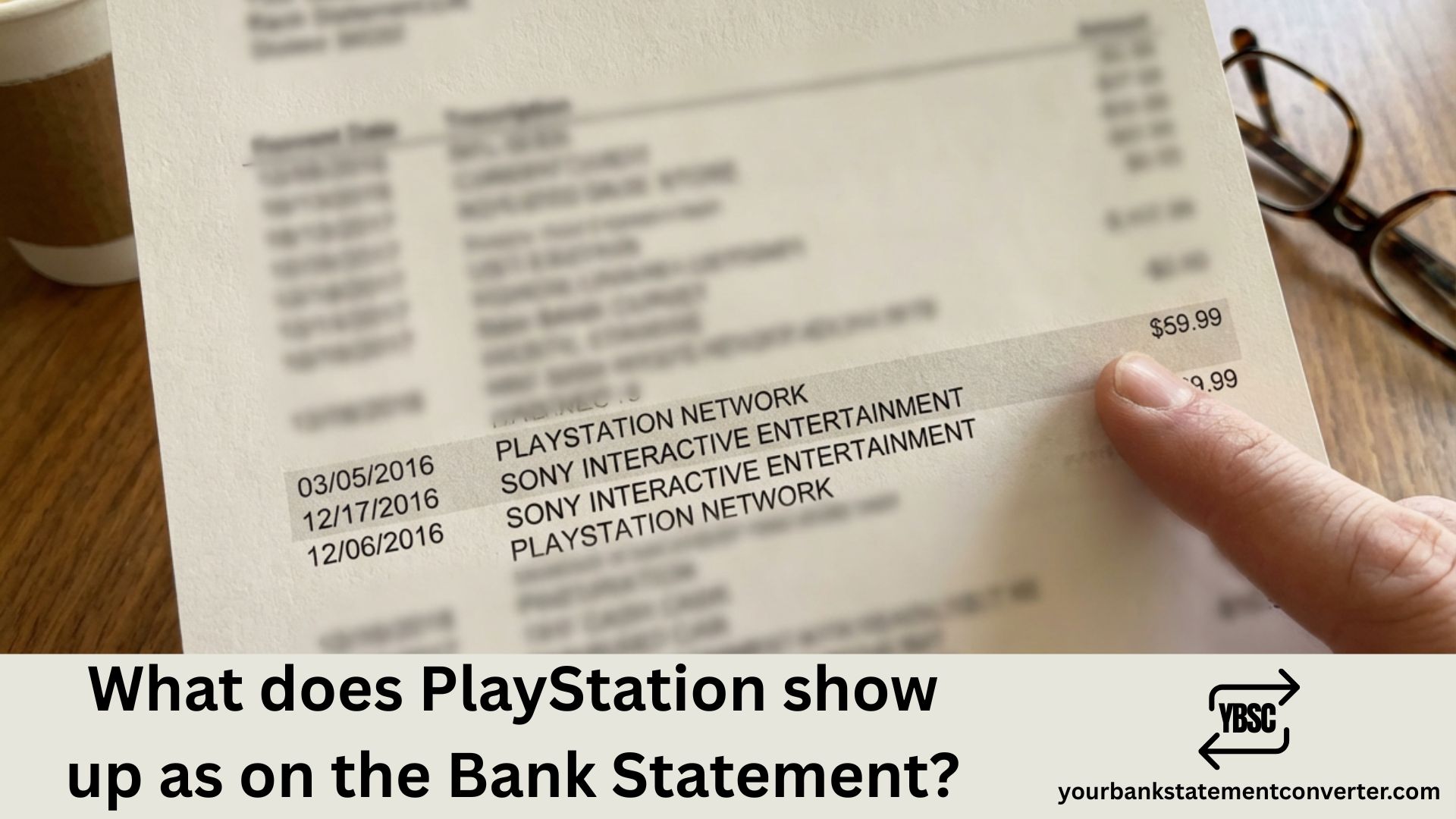
What Does PlayStation Show Up As on a Bank Statement
PlayStation charges typically appear on your bank or credit card statement under the following names:
Most Common Descriptors:
- PLAYSTATION NETWORK or PLAYSTATIONNETWORK
- SONY PLAYSTATION NETWORK
- SONY ENTERTAINMENT NETWORK
- SIE (Sony Interactive Entertainment)
- SONY INTERACTIVE ENTERTAINMENT
- PSN or PS STORE
Location-Based Variations:
- PLAYSTATION NETWORK FOSTER CITY CA 94404 US (US billing center)
- PLAYSTATIONNETWORK LONDON GBR (UK/European billing)
- PLAYSTATIONNETWORK INTERNET GB
- SONY INTERACTIVE ENTERTAINMENT NETWORK EUROPE LIMITED
Other Variations You Might See:
- PLAYSTATION SONYENTERT 800-345-7669 CA
- SONY DADC
- SONY ON DEMAND
- PLAYSTATION SUBSCRIPTION
- PSN MEMBERSHIP
- PLAYSTATION PLUS
- PSN RECHARGE
- PLAYSTATION CREDITS
- PLAYSTATION DIGITAL
- PSN PURCHASE
- PS STORE TRANSACTION
- PLAYSTATION GIFT CARD
The exact descriptor depends on your bank, your region, payment processor, and the type of purchase (game, subscription, in-game currency, etc.).
What Does SIE Mean on Bank Statement?
If you see SIE on your bank statement, don’t panic—it stands for Sony Interactive Entertainment, the company that owns and operates PlayStation.
Common SIE charge variations include:
- SIE PLAYSTATION NETWORK
- SIE NETWORK CHARGES
- SIE*PLAYSTATION
- SONY INTERACTIVE ENT
These charges are legitimate and typically relate to PlayStation Plus subscriptions, game purchases, or in-game transactions.
How Much Should You See Charged?
Here are the current PlayStation Plus subscription prices (2025) to help you verify your charge amount:
PlayStation Plus Essential
| Duration | Price |
|---|---|
| 1 Month | $9.99 |
| 3 Months | $24.99 |
| 12 Months | $79.99 |
PlayStation Plus Extra
| Duration | Price |
|---|---|
| 1 Month | $14.99 |
| 3 Months | $39.99 |
| 12 Months | $134.99 |
PlayStation Plus Premium
| Duration | Price |
|---|---|
| 1 Month | $17.99 |
| 3 Months | $49.99 |
| 12 Months | $159.99 |
Other common PlayStation charges:
- Individual game purchases: $9.99 – $69.99+
- In-game currency/V-Bucks/FIFA Points: Varies
- Movie rentals: $3.99 – $19.99
- PlayStation Store wallet top-ups: $10, $20, $50, $100
Note: Prices may vary slightly due to taxes or promotional discounts.
How to Verify If a PlayStation Charge Is Legitimate
If you don’t recognize a PlayStation charge on your statement, follow these steps:
Step 1: Check Your PlayStation Transaction History
- Log in to your PlayStation account at store.playstation.com
- Go to Settings → Account Management → Account Information
- Select Wallet → Transaction History
- Review your recent purchases
Step 2: Check on Your Console
- PS5: Go to Settings → Users and Accounts → Account → Payment and Subscriptions → Transaction History
- PS4: Go to Settings → Account Management → Account Information → Wallet → Transaction History
Step 3: Search Your Email Look for purchase confirmation emails from PlayStation or Sony Entertainment Network.
Step 4: Check Family Members Kids, family members, or anyone with access to your PlayStation account may have made purchases—especially in-game microtransactions.
Step 5: Review Linked Payment Methods Check if your credit card is saved on multiple PlayStation accounts.
Struggling to Track Multiple Gaming Subscriptions?
Managing bank statements with charges from PlayStation, Xbox, Steam, and other gaming platforms can get overwhelming. If you need to convert, organize, or analyze your bank statements for budgeting, expense tracking, or loan applications, Your Bank Statement Converter can help.
Why use YourBankStatementConverter.com?
- ✅ Convert PDF bank statements to Excel, CSV, or other formats
- ✅ Easily identify and categorize gaming subscription charges
- ✅ Perfect for parents tracking kids’ gaming expenses
- ✅ Ideal for freelancers, accountants, and small business owners
- ✅ Fast, secure, and accurate conversion
👉 Try Your Bank Statement Converter Today
What to Do If You Don’t Recognize the Charge
If after checking you still don’t recognize the PlayStation charge:
- Contact PlayStation Support – Visit playstation.com/support or call 1-800-345-7669 (US)
- Check for Unauthorized Access – Change your PSN password and enable 2-factor authentication
- Contact Your Bank – Report the suspicious charge and request an investigation
- Dispute the Charge – If unauthorized, file a dispute with your credit card company
⚠️ Important Warning: If you dispute a PlayStation charge with your bank without first contacting Sony, your PlayStation account may be banned until the issue is resolved.
How to Cancel PlayStation Plus Subscription
If you want to stop future PlayStation charges:
On PS5:
- Go to Settings → Users and Accounts
- Select Account → Payment and Subscriptions → Subscriptions
- Select PlayStation Plus
- Click Cancel Subscription → Confirm
On PS4:
- Go to Settings → Account Management → Account Information
- Select PlayStation Subscriptions
- Select the subscription you want to cancel
- Click Turn Off Auto-Renew
On Web Browser:
- Sign in at store.playstation.com
- Go to Subscription Management
- Select Turn Off Auto-Renew next to PlayStation Plus
How to Stop Unwanted PlayStation Charges
To prevent unexpected charges in the future:
- Remove saved payment methods – Go to Settings → Payment Management → Remove Card
- Turn off auto-renewal for all subscriptions
- Set up purchase password – Require password for every purchase
- Use PlayStation wallet – Add funds manually instead of linking a card directly
- Set spending limits for child accounts through Family Management
Frequently Asked Questions
Why does PlayStation show up as FOSTER CITY CA on my bank statement?
Foster City, California is where Sony Interactive Entertainment’s US billing headquarters is located. All US PlayStation Network transactions are processed from this location, which is why you see “FOSTER CITY CA 94404 US” on your statement.
What is the PLAYSTATIONNETWORK charge on my credit card?
A PLAYSTATIONNETWORK charge is a legitimate transaction from Sony’s PlayStation Network. It could be for a PlayStation Plus subscription, game purchase, in-game currency, movie rental, or any other PlayStation Store transaction.
What does SIE charge mean on my bank statement?
SIE stands for Sony Interactive Entertainment, the company behind PlayStation. An SIE charge is typically for PlayStation Plus subscriptions, game purchases, or other PlayStation Network transactions.
Why am I being charged for PlayStation when I don’t have a PlayStation?
This could happen if: (1) A family member used your card, (2) Your card details were compromised in a data breach, (3) You have an old forgotten subscription, or (4) Your card is linked to someone else’s account. Check with family first, then contact your bank if unauthorized.
How do I get a refund from PlayStation?
PlayStation offers refunds within 14 days of purchase if you haven’t downloaded or streamed the content. Visit playstation.com/support, select “PlayStation Store & Refunds,” and submit a refund request. Subscription refunds are prorated based on usage.
Is PLAYSTATIONNETWORK INTERNET GB a scam?
Not necessarily—this is a legitimate billing descriptor used by Sony for PlayStation transactions processed through their UK/European billing center. However, if you didn’t make the purchase, it could be unauthorized. Verify through your PSN transaction history first.
Why do I have multiple PlayStation charges on my statement?
Multiple charges could indicate: (1) Separate game/DLC purchases, (2) In-game microtransactions, (3) Subscription renewal plus a purchase, (4) Family member purchases, or (5) A billing error. Review your PSN transaction history for details.
How do I stop PlayStation from automatically charging my card?
Go to Settings → Account Management → Account Information → PlayStation Subscriptions, then select each subscription and click “Turn Off Auto-Renew.” Also remove saved payment methods from your wallet to prevent accidental purchases.
What is SONY DADC on my bank statement?
SONY DADC (Digital Audio Disc Corporation) is Sony’s disc manufacturing and distribution subsidiary. This charge typically appears for physical media purchases or some digital content processed through this division.
Can I dispute a PlayStation charge without getting banned?
Disputing a charge directly with your bank (chargeback) before contacting PlayStation can result in your PSN account being suspended. Always contact PlayStation Support first to resolve billing issues before involving your bank.
Final Thoughts
Seeing an unfamiliar charge on your bank statement can be alarming, but PlayStation transactions are usually easy to identify once you know what to look for. Common descriptors include PLAYSTATION NETWORK, SIE, SONY INTERACTIVE ENTERTAINMENT, or PLAYSTATIONNETWORK with location details like FOSTER CITY CA or LONDON GBR.
Always verify charges through your PSN transaction history first, and remember to contact PlayStation Support before disputing with your bank to avoid account suspension.
If you’re managing multiple subscriptions and need help organizing your financial records, Your Bank Statement Converter makes it easy to convert and analyze your statements in minutes.
👉 Convert Your Bank Statements Now