Checking your bank statement and noticed an unfamiliar charge from Microsoft? You’re not alone. Millions of Microsoft 365 subscribers see charges that may look different from what they expected. Understanding how Microsoft 365 appears on your bank statement helps you identify legitimate charges, avoid confusion, and manage your subscriptions effectively.
What Does Microsoft 365 Show Up as on a Bank Statement?
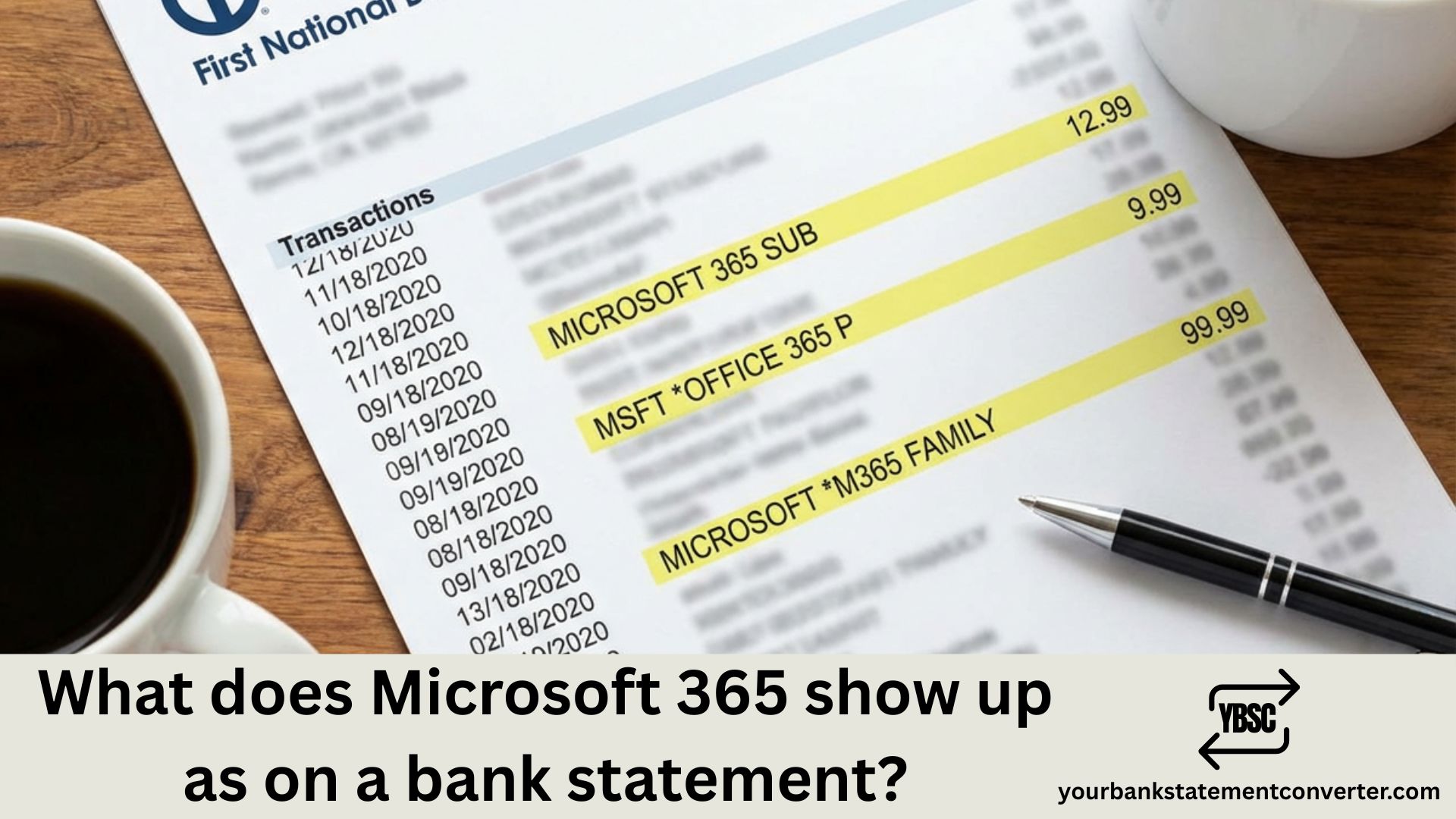
Microsoft 365 typically appears on your bank or credit card statement under several variations. The most common descriptors include:
- MICROSOFT*365 – The standard charge description for Microsoft 365 subscriptions
- MSFT*MICROSOFT 365 – Another common variation showing the Microsoft abbreviation
- MICROSOFT*OFFICE 365 – May still appear for legacy Office 365 subscriptions
- MICROSOFT*M365 – Abbreviated version that appears on some statements
- MSBILL.INFO – Microsoft’s billing platform identifier
- MICROSOFT SERVICES – Generic descriptor for various Microsoft services
- MICROSOFT*365 REDMOND WA – Includes Microsoft’s headquarters location
The charge amount varies based on your subscription plan: Microsoft 365 Personal costs approximately $6.99/month or $69.99/year, while Microsoft 365 Family runs about $9.99/month or $99.99/year. Business plans range from $6.00 to $22.00 per user per month.
Why Microsoft 365 Charges May Look Different on Your Statement
Bank statements have character limits for merchant descriptions, which is why you might see truncated or abbreviated versions of “Microsoft 365.” Additionally, your payment method, country of purchase, and the specific Microsoft subscription you have can all affect how the charge appears.
Some users also notice location identifiers in their charge descriptions, such as “MICROSOFT*365 REDMOND WA” or international billing centers depending on your region.
How to Verify a Microsoft 365 Charge Is Legitimate
To confirm that a Microsoft 365 charge on your bank statement is authentic:
- Log into your Microsoft account at account.microsoft.com
- Navigate to “Payment & billing” to view your order history
- Cross-reference the date and amount with your bank statement
- Check your email for subscription confirmation receipts from Microsoft
If you don’t recognize the charge and cannot find a matching subscription in your Microsoft account, you may need to dispute the transaction with your bank or contact Microsoft Support directly.
Need to Track and Organize Your Bank Statements?
Managing subscription charges like Microsoft 365 becomes much easier when your bank statements are in an organized, editable format. If you need to convert your PDF bank statements to Excel, CSV, or other formats for better tracking and categorization, YourBankStatementConverter.com offers a fast, secure solution.
With YourBankStatementConverter.com, you can easily:
- Convert and analyze your bank statements
- Identify recurring charges like Microsoft 365
- Track subscription expenses accurately
- Maintain better financial records
The tool supports multiple bank formats and provides accurate, clean data extraction for personal budgeting or business accounting needs.
How to Cancel or Manage Your Microsoft 365 Subscription
If you want to stop Microsoft 365 charges from appearing on your bank statement, you can cancel your subscription through your Microsoft account:
- Sign in at account.microsoft.com
- Go to Services & subscriptions
- Find Microsoft 365
- Select “Cancel” or turn off recurring billing
Remember that canceling will disable recurring billing, but you can continue using the service until your current billing period ends.
Understanding Microsoft 365 Bank Statement Charges: Key Takeaways
Knowing what Microsoft 365 looks like on your bank statement is essential for tracking your subscription expenses and identifying unauthorized charges. The most common descriptors are MICROSOFT*365, MSFT*MICROSOFT 365, and MSBILL.INFO. Always verify charges through your Microsoft account, and use tools like YourBankStatementConverter.com to convert and organize your bank statements for better financial management. By staying informed about how Microsoft 365 charges appear on your bank statement, you can maintain control over your subscriptions and budget effectively.
Frequently Asked Questions
What does Microsoft 365 charge look like on a credit card statement?
Microsoft 365 typically appears as MICROSOFT365, MSFTMICROSOFT 365, MICROSOFT*M365, or MSBILL.INFO on credit card statements. The charge may include a location like “REDMOND WA” or an international billing address depending on your region.
Why do I see a Microsoft charge I don’t recognize?
Unrecognized Microsoft charges may come from a family member using your payment method, a free trial that converted to a paid subscription, automatic renewal of an expired subscription, or in rare cases, unauthorized use. Check your Microsoft account order history to verify the charge source.
How much does Microsoft 365 charge per month?
Microsoft 365 Personal costs $6.99/month, Microsoft 365 Family costs $9.99/month (for up to 6 users), and business plans range from $6.00 to $22.00 per user per month depending on the features included.
Can I get a refund for Microsoft 365 charges?
Microsoft offers refunds for eligible purchases within a limited time window. For digital subscriptions like Microsoft 365, you may request a refund through your Microsoft account or by contacting Microsoft Support. Refund eligibility depends on how recently you were charged and whether you’ve used the service.
How do I stop Microsoft 365 from charging my card?
To stop Microsoft 365 charges, log into your Microsoft account, navigate to Services & subscriptions, locate your Microsoft 365 subscription, and turn off recurring billing or cancel the subscription entirely. You can also remove your payment method from your account.
What is MSBILL.INFO on my bank statement?
MSBILL.INFO is Microsoft’s billing platform identifier. This descriptor appears on bank statements for various Microsoft purchases including Microsoft 365 subscriptions, Xbox services, Windows Store purchases, and other Microsoft digital products.
How can I better track my subscription charges?
To better track subscription charges like Microsoft 365, use YourBankStatementConverter.com to convert your PDF bank statements into Excel or CSV format. This allows you to easily search, filter, and categorize all your recurring charges in one organized spreadsheet for better financial management.