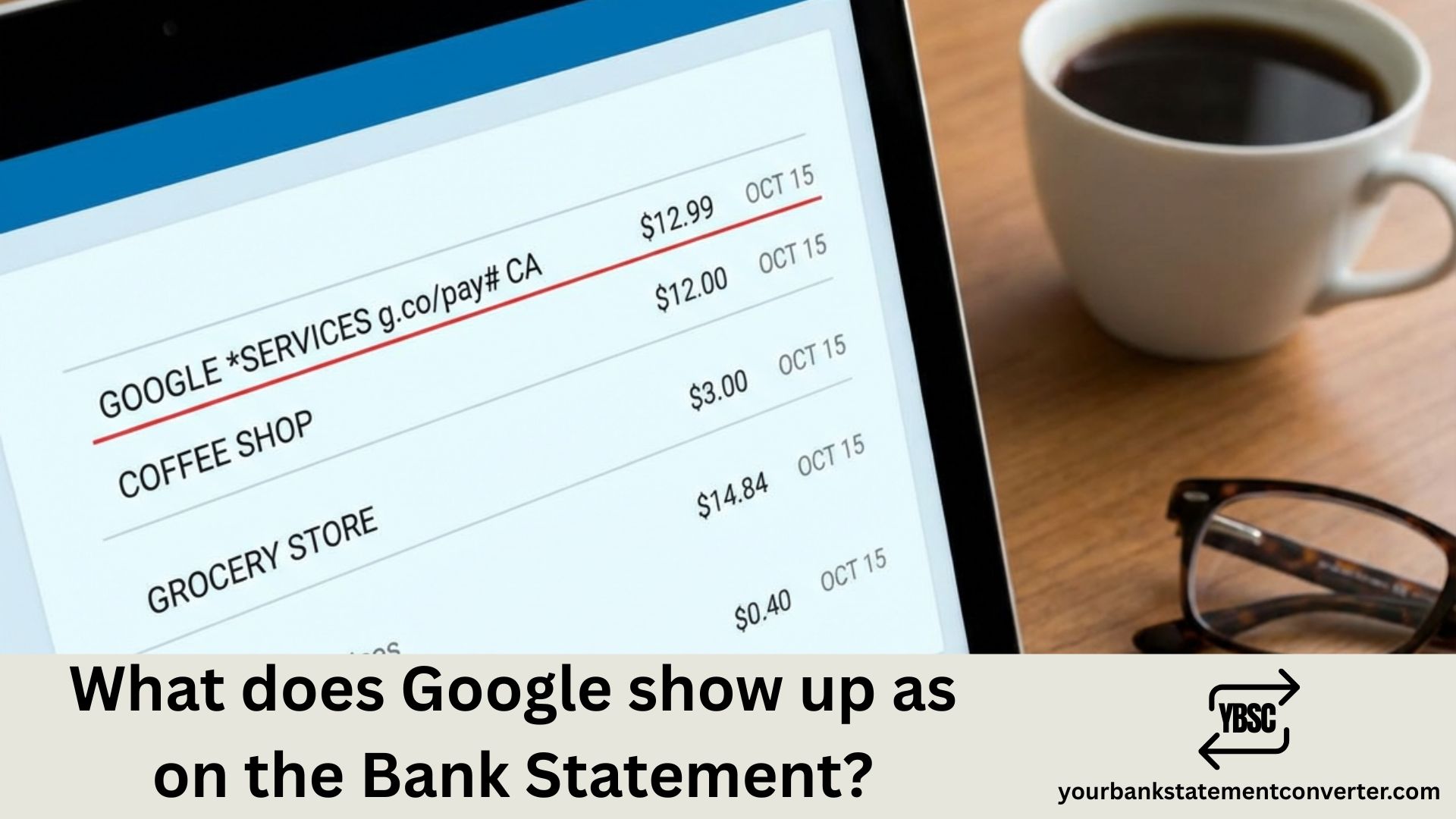
Ever spotted a mysterious “GOOGLE” charge on your bank statement and wondered what it’s for? You’re not alone. Millions of people see Google-related transactions on their statements every day—from app purchases to YouTube subscriptions to temporary verification holds.
In this guide, we’ll break down exactly how Google charges appear on your bank statement, what each descriptor means, and how to identify (and verify) every transaction.
What Does Google Show Up as on a Bank Statement
When you make any purchase through Google services, the charge appears on your bank statement starting with “GOOGLE”* followed by the specific service or product name.
Here’s the standard format:
GOOGLE* + [Service/Product Name]
Common Google Charge Descriptors You’ll See
| Bank Statement Entry | What It Means |
|---|---|
| GOOGLE*PLAY | Google Play Store app or game purchase |
| GOOGLE*YouTube Premium | YouTube Premium subscription |
| GOOGLE*YouTube TV | YouTube TV subscription |
| GOOGLE*YouTube Music | YouTube Music subscription |
| GOOGLE*Google One | Google One storage subscription |
| GOOGLE*Google Storage | Google cloud storage |
| GOOGLE*TEMPORARY HOLD | Card verification (not an actual charge) |
| GOOGLE*[App Developer Name] | In-app purchase from specific app |
| GOOGLE*Mountain View | General Google services charge |
| GOOGLE WORKSPACE [domain] | Google Workspace business subscription |
Important: Some descriptors may appear shortened depending on your bank’s statement format. You might see truncated versions like “GOOGLEYOUT…” or “GOOGLEPLAY S…”
Why Does Google Appear Differently on Statements?
The way Google charges appear depends on three factors:
1. The Google Service Used Each Google product has its own descriptor. YouTube charges show as “GOOGLEYouTube [service]” while Play Store purchases show as “GOOGLEPLAY” or “GOOGLE*[Developer Name].”
2. Your Bank’s Formatting Banks truncate merchant names differently. Some show full descriptors while others cut them off at 15-20 characters.
3. Transaction Type Subscriptions typically show the service name, while one-time purchases might show the app developer or seller name.
Understanding GOOGLE*TEMPORARY HOLD Charges
One of the most confusing entries people see is GOOGLE*TEMPORARY HOLD. Here’s what you need to know:
- It’s NOT an actual charge—it’s a verification hold
- Google places this when you add a new payment method or make certain purchases
- The amount is typically $1-$2 (sometimes the purchase amount)
- It disappears within 1-14 business days
- Your bank controls when it drops off, not Google
When does this appear?
- Adding a new card to Google Pay
- Making your first purchase on a new device
- Card verification during checkout
- Testing payment methods
If the temporary hold doesn’t disappear after 14 days, contact your bank.
How to Verify Any Google Charge
Not sure what a Google charge is for? Here’s how to investigate:
Step 1: Check Google Payments Center
Visit payments.google.com and sign in. You’ll see a complete transaction history for all Google services.
Step 2: Review Google Play Purchase History
Open the Google Play Store → Profile → Payments & subscriptions → Budget & order history.
Step 3: Check Your Email
Google sends receipts to your Gmail. Search for “Google” or “googleplay-noreply@google.com” to find transaction confirmations.
Step 4: Review Active Subscriptions
Go to play.google.com/store/account/subscriptions to see all active subscriptions tied to your account.
Struggling to Match Bank Statement Charges?
If you’re dealing with multiple Google transactions or trying to reconcile your bank statements for accounting, loan applications, or expense tracking, manually matching charges can be tedious.
Your Bank Statement Converter makes this process effortless. Simply upload your PDF bank statement and convert it to Excel, CSV, or other formats—making it easy to search, filter, and match Google charges with your records.
✅ Convert PDF statements to Excel/CSV instantly
✅ Search and filter transactions easily
✅ Perfect for expense tracking and accounting
✅ Secure and fast processing
👉 Try Your Bank Statement Converter Now
Google Charges by Service: Quick Reference
Google Play Store Charges
- Format: GOOGLEPLAY or GOOGLE[Developer Name]
- Includes: Apps, games, movies, books, in-app purchases
- Appears: Within a few days of purchase
YouTube Charges
- Format: GOOGLE*YouTube [Service Name]
- Includes: YouTube Premium, YouTube TV, YouTube Music, Super Chats, channel memberships
- Appears: Monthly for subscriptions
Google Workspace Charges
- Format: GOOGLE WORKSPACE [first 7 letters of domain]
- Includes: Gmail, Drive, Meet for business
- Appears: Monthly or annually
Google One Charges
- Format: GOOGLEGoogle One or GOOGLEGoogle Storage
- Includes: Cloud storage subscription
- Appears: Monthly or annually
Google Hardware Charges
- Format: GOOGLEGOOGLE STORE or GOOGLEMountain View
- Includes: Pixel phones, Nest products, accessories
- Appears: At time of purchase
What If You Don’t Recognize a Google Charge?
Before assuming fraud, follow these steps:
1. Check Family Members Others with access to your Google account or payment method may have made purchases. Check Google Family sharing settings.
2. Review Free Trials Did you sign up for a free trial that converted to paid? YouTube Premium and Google One commonly do this.
3. Check Forgotten Subscriptions You might have subscriptions you forgot about. Review all active subscriptions in your Google account.
4. Verify the Format If the charge doesn’t start with “GOOGLE*” or follow standard formats, it may not be from Google. Contact your bank.
If It’s Actually Unauthorized:
- Report it through Google’s unauthorized charge page
- Change your Google account password
- Enable two-factor authentication
- Contact your bank to dispute if needed
How Google Pay Transactions Appear
When using Google Pay (tap-to-pay), charges appear differently:
In-Store Purchases: Show the actual merchant name (e.g., “STARBUCKS” not “GOOGLE”)
Online/In-App Purchases: May show “GOOGLE*[Retailer Name]” or just the retailer name
Identifying Feature: Some banks add a “D” indicator for digital wallet transactions. You might see: “1234 07Dec15 D, Amazon.co.uk”
Tips to Avoid Unexpected Google Charges
- Set up purchase authentication in Google Play settings
- Review subscriptions monthly at payments.google.com
- Enable purchase notifications through Google Pay
- Cancel free trials before they convert to paid subscriptions
- Use a virtual card for trial signups when possible
- Check Google Family settings if you share an account
Make Bank Statement Management Easier
Tracking Google charges—and all your transactions—becomes much simpler when you can actually work with your bank statement data.
Your Bank Statement Converter transforms your PDF bank statements into organized, searchable spreadsheets. Whether you’re:
- Reconciling expenses for tax season
- Tracking subscriptions you want to cancel
- Preparing documents for a loan application
- Managing business expenses
Converting your statements to Excel or CSV format lets you sort, search, and analyze your transactions in seconds.
👉 Convert Your Bank Statement Now
Frequently Asked Questions
What does GOOGLE*TEMPORARY HOLD mean on my bank statement?
GOOGLE*TEMPORARY HOLD is a pending authorization, not an actual charge. Google uses this to verify your payment method is valid when you add a new card or make certain purchases. The hold (usually $1-$2) disappears within 1-14 business days automatically.
Why does my bank statement say GOOGLE*Mountain View?
Mountain View, California is Google’s headquarters location. Charges showing “GOOGLE*Mountain View” typically come from Google Store hardware purchases, general Google services, or when the specific service name isn’t displayed. Check your Google Payments history to identify the exact purchase.
How do I find out what a GOOGLE*PLAY charge is for?
To identify a GOOGLE*PLAY charge: Visit the Google Play Store, tap your profile icon, select “Payments & subscriptions,” then “Budget & order history.” You’ll see all your Play Store purchases with dates and amounts. Match the amount and date to your bank statement charge.
What does GOOGLE*YouTube Premium look like on a bank statement?
YouTube Premium charges appear as “GOOGLE*YouTube Premium” on your bank statement. If you have a family plan, it still shows the same way. The charge amount matches your subscription tier (individual, family, or student pricing).
Can I get a refund for a Google charge I didn’t authorize?
Yes. If you identify an unauthorized Google charge, you can request a refund through Google Play (for app/game purchases) or Google Payments Center (for other services). Report unauthorized charges within 120 days of the transaction. For accidental purchases by family members, Google may offer refunds through their standard process.
Why am I being charged by Google when I didn’t buy anything?
Common reasons include: forgotten subscriptions (YouTube Premium, Google One, Google Workspace), free trials that converted to paid plans, family members making purchases on shared accounts, in-app purchases from games, or temporary authorization holds. Check your Google Payments history to identify the specific charge.
How do I stop Google from charging my bank account?
To stop future Google charges: Go to payments.google.com, review and cancel any active subscriptions, remove stored payment methods if desired, and check Google Play subscription settings at play.google.com/store/account/subscriptions. For family accounts, also review Google Family settings.
What is the difference between GOOGLEPLAY and GOOGLE[Developer Name]?
GOOGLEPLAY typically indicates a general Play Store purchase like a movie rental or book. GOOGLE[Developer Name] shows when you make an in-app purchase or buy an app—the developer’s name appears in the descriptor so you know which app charged you.
How long do Google temporary holds take to disappear?
Google temporary holds typically disappear within 1-14 business days. The exact timing depends on your bank’s policies, not Google. If the hold remains after 14 business days, contact your bank directly to inquire about releasing the authorization.
Does Google Pay show up differently on bank statements?
Yes. When you use Google Pay for tap-to-pay at physical stores, the merchant’s name appears (not Google). For online purchases through Google Pay, it may show “GOOGLE*[Merchant Name]” or just the merchant name depending on how the retailer processes payments.
Final Thoughts
Google charges on your bank statement follow predictable patterns once you know what to look for. The “GOOGLE*” prefix followed by the service name makes most transactions easy to identify. When in doubt, your Google Payments history at payments.google.com has the complete record.
For easier bank statement management—whether you’re tracking Google charges or reconciling all your expenses—Your Bank Statement Converter transforms your PDF statements into searchable, sortable spreadsheets in seconds.
Last Updated: December 2025