If you’ve recently subscribed to LinkedIn Premium and noticed an unfamiliar charge on your bank or credit card statement, you’re not alone. Many users find themselves puzzled by how LinkedIn Premium appears on their financial records. Understanding these charges helps you track your subscriptions and avoid any confusion during expense reconciliation.
What Does LinkedIn Premium Show Up as on a Bank Statement
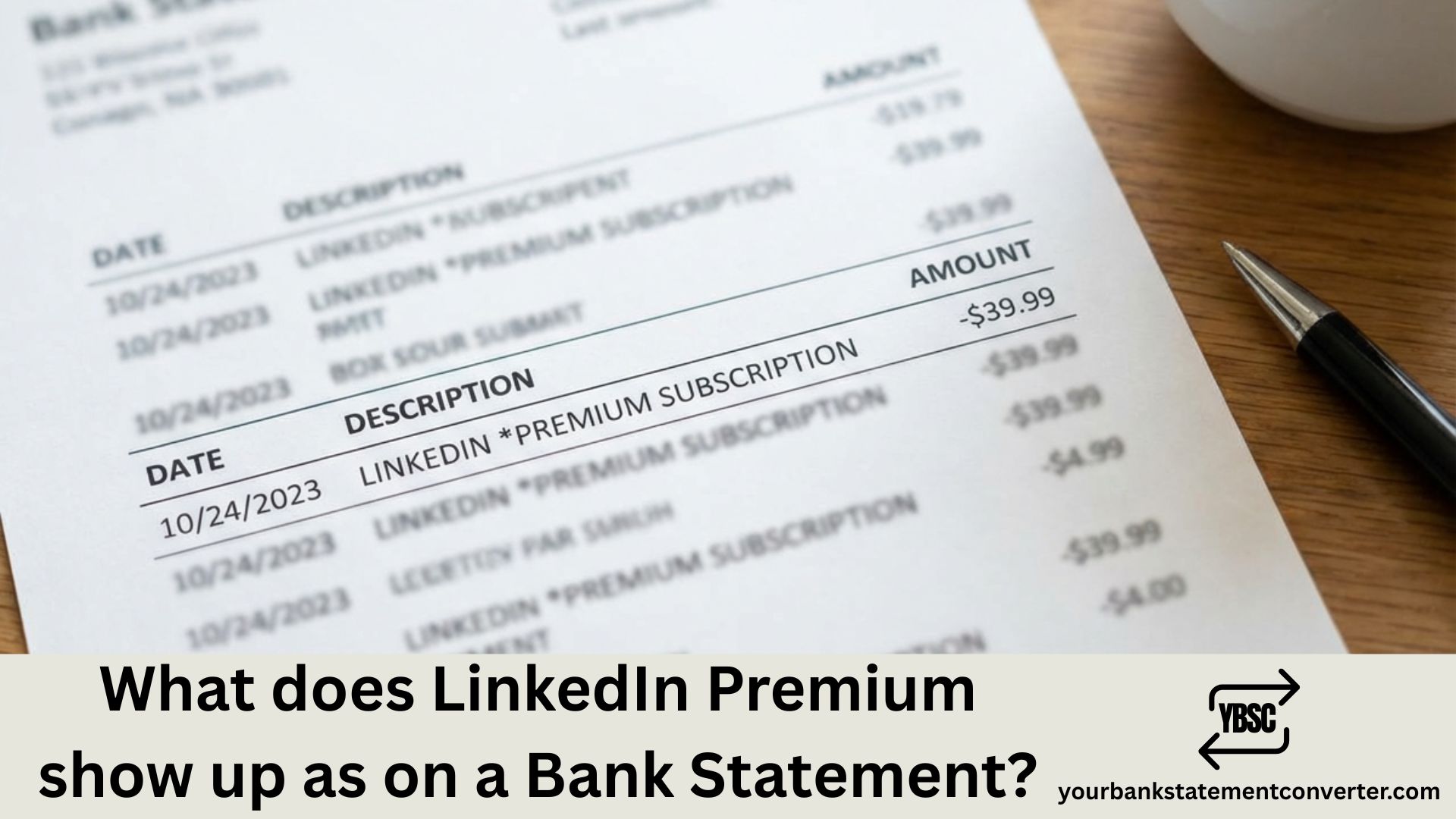
LinkedIn Premium charges typically appear on your bank statement under one of these common descriptors:
- LINKEDIN PREMIUM – The most straightforward and common format
- LINKEDIN*PREMIUM – Often seen on credit card statements
- LINKEDIN CORPORATION – May appear on some banking platforms
- LINKEDIN.COM – Generic descriptor used by some payment processors
- MICROSOFT*LINKEDIN – Since Microsoft owns LinkedIn, this format appears occasionally
- LI PREMIUM or LINKEDIN PREM – Abbreviated versions due to character limits
The exact wording depends on your bank’s statement formatting, your payment method, and your country of residence.
LinkedIn Premium Subscription Costs to Expect
When reviewing your statement, here are the current LinkedIn Premium pricing tiers (billed monthly or annually):
| Plan | Monthly Cost | Annual Cost (per month) |
|---|---|---|
| Premium Career | $29.99 | $19.99 |
| Premium Business | $59.99 | $44.99 |
| Sales Navigator Core | $99.99 | $79.99 |
| Recruiter Lite | $170.00 | $140.00 |
Prices may vary by region and are subject to change.
Why Your LinkedIn Charge Might Look Different
Several factors can affect how LinkedIn Premium shows up on your bank statement:
Character Limitations: Banks often truncate merchant names to fit their statement format, resulting in shortened versions like “LINKEDIN PREM” or “LI CORP.”
Payment Processor Variations: If you subscribed through the LinkedIn mobile app, the charge might appear as “APPLE.COM/BILL” or “GOOGLE*LINKEDIN” depending on your device.
Currency Conversion: International users may see additional descriptors related to currency conversion fees alongside the LinkedIn charge.
Corporate Billing: If your employer covers your LinkedIn Premium subscription, it might appear under your company’s procurement or corporate card system with a different reference.
How to Verify a LinkedIn Premium Charge
If you’re unsure whether a charge is legitimate, follow these steps:
- Log into LinkedIn: Navigate to Settings > Account > Subscriptions & Payments to view your billing history
- Check Email Receipts: LinkedIn sends confirmation emails for every billing cycle
- Match the Amount: Compare the statement charge with LinkedIn’s current pricing
- Review the Date: Subscription renewals typically occur on the same date each month or year
Managing Your LinkedIn Premium Subscription
To avoid unexpected charges or confusion on future bank statements:
- Set Calendar Reminders: Note your renewal date to review before automatic billing
- Update Payment Methods: Keep your preferred payment card current to ensure consistent billing descriptors
- Download Statements: LinkedIn provides downloadable invoices for expense tracking and reimbursement
Simplify Your Bank Statement Analysis with the Right Tools
Tracking subscription charges like LinkedIn Premium becomes significantly easier when you can convert your bank statements into organized, searchable formats. If you’re a bookkeeper, accountant, or small business owner dealing with multiple subscriptions and transactions, manually sorting through PDF bank statements is time-consuming and error-prone.
Our bank statement to Excel converter offers a fast, accurate solution for converting bank statements from PDF to Excel, CSV, or QuickBooks-ready formats. Whether you’re reconciling personal subscriptions like LinkedIn Premium or managing client financials, this tool helps you:
- Instantly identify recurring charges like LinkedIn Premium, Netflix, and other subscriptions
- Export clean, organized data for accounting software integration
- Save hours of manual data entry with AI-powered extraction
- Support multiple bank formats from major institutions worldwide
Stop squinting at cryptic bank statement entries. Convert your statements in seconds and gain complete visibility over every transaction, including those LinkedIn Premium charges.
👉 Try our bank statement to CSV converter Today
Understanding LinkedIn Premium Bank Statement Charges: Key Takeaways
Knowing what LinkedIn Premium shows up as on your bank statement helps you maintain accurate financial records and quickly identify legitimate charges. Whether it appears as “LINKEDIN PREMIUM,” “MICROSOFT*LINKEDIN,” or an abbreviated version, the key is matching the charge amount and date with your subscription details. For professionals managing multiple subscriptions and business expenses, using tools like our PDF to Excel bank statement converter streamlines the entire reconciliation process, making it easy to spot and categorize every recurring charge on your statements. If this is work you repeat, the pricing page sets out the per-page tiers.
Frequently Asked Questions
Why does my LinkedIn charge say Microsoft?
Since Microsoft acquired LinkedIn in 2016, some payment processors display the charge as “MICROSOFTLINKEDIN” or “MSFTLINKEDIN.” This is a legitimate charge from your LinkedIn Premium subscription.
How do I stop LinkedIn Premium charges on my bank statement?
To cancel LinkedIn Premium and stop future charges, go to LinkedIn Settings > Account > Subscriptions & Payments > Manage Premium Account > Cancel Subscription. You’ll retain access until your current billing period ends.
Does LinkedIn Premium charge monthly or annually?
LinkedIn Premium offers both monthly and annual billing options. Annual plans provide a discount but charge the full amount upfront. Check your subscription settings to confirm your billing cycle.
What if I don’t recognize a LinkedIn charge on my statement?
First, verify by logging into your LinkedIn account to check subscription status. If you didn’t authorize the charge, contact LinkedIn support immediately and dispute the charge with your bank.
Can I get a refund for LinkedIn Premium?
LinkedIn offers refunds within a limited window, typically for annual subscriptions purchased by mistake. Contact LinkedIn Help Center promptly to request a refund review.
How do I download LinkedIn Premium invoices for expense reports?
Navigate to Settings > Account > Subscriptions & Payments > View Purchase History. From there, you can download PDF invoices for each billing cycle for reimbursement or tax purposes.
Why was I charged twice for LinkedIn Premium?
Double charges can occur due to payment processing errors or if you have multiple LinkedIn accounts with active subscriptions. Review your accounts and contact LinkedIn support if the duplicate charge is unexplained.
Does LinkedIn Premium free trial charge my card?
Yes, LinkedIn requires a payment method for free trials. If you don’t cancel before the trial ends, your card will be automatically charged for the subscription.