Ever noticed a mysterious charge on your bank statement and wondered if it’s from Hinge? You’re not alone. Dating app charges can appear under different names, making it tricky to track your subscriptions and expenses.
Key Takeaways
- Hinge usually bills through Apple or Google, so the app’s name may never appear.
- A descriptor reading
APPLE.COM/BILLorGOOGLE *HINGEis the normal case. - Subscriptions renew automatically, which is why a charge arrives with no action from you.
- Deleting the app does not cancel the subscription.
- Cancelling is done in your App Store or Play Store account, not in Hinge.
What Does Hinge Show Up as on Bank Statement
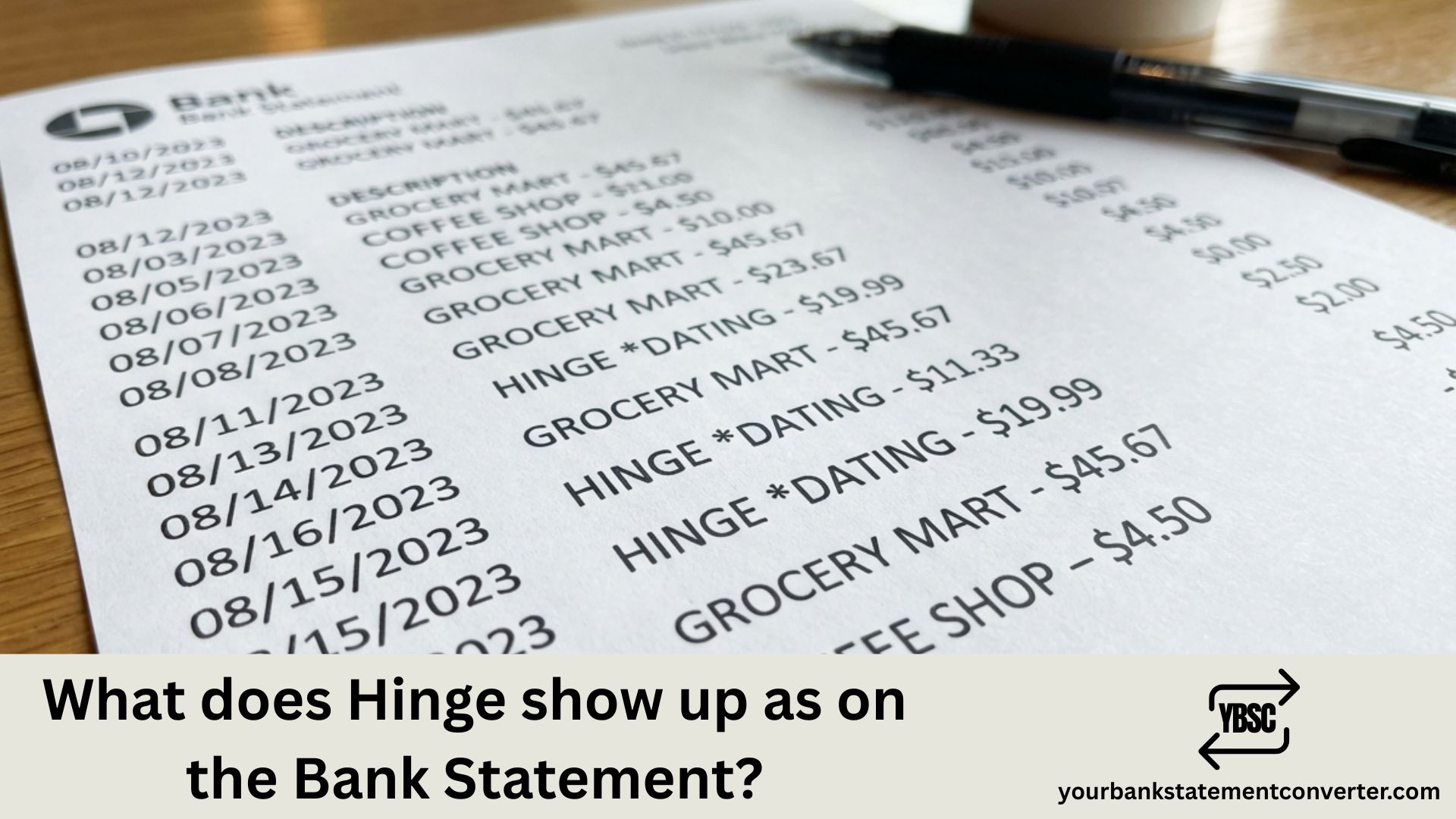
Hinge charges typically appear on your bank statement as one of these variations:
- HINGE or HINGE.CO
- MATCH GROUP or MATCH.COM (Hinge’s parent company)
- HINGE DATING
- HINGE MEMBERSHIP
- MG HINGE or MTCH*HINGE
The exact descriptor depends on your bank and the type of purchase—whether it’s a Hinge+ subscription, Hinge Preferred membership, or individual purchases like Roses and Standouts.
Common Hinge Charges to Expect
| Common Hinge Charges to Expect | |
| Charge Type | Typical Statement Description |
| Monthly subscription | HINGE MEMBERSHIP or MATCH GROUP |
| Weekly subscription | HINGE.CO or MTCH*HINGE |
| In-app purchases (Roses, Boosts) | HINGE or HINGE DATING |
Why Hinge Charges May Look Different
Since Match Group owns Hinge, some banks display the parent company name instead. International transactions might also show slight variations or include country codes.
Struggling to Track Your Dating App Subscriptions?
If you’re reviewing bank statements to monitor subscriptions like Hinge, Tinder, or Bumble, manually scanning through PDF statements is time-consuming. Our free online bank statement converter lets you instantly convert bank statement PDFs to Excel or CSV format—making it effortless to search, filter, and categorize all your recurring charges in seconds.
Perfect for tracking subscriptions, budgeting, or preparing financial records.
FAQs
Why Hinge Often Does Not Appear By Name
Most people subscribe inside the app rather than on a website, and that detail decides what your bank sees.
An in-app purchase on an iPhone is billed by Apple, so the charge reaches your statement as APPLE.COM/BILL with no mention of Hinge. On Android it is billed by Google, usually as GOOGLE *HINGE or a similar string.
Only a subscription bought directly through Hinge’s own website tends to carry the Hinge name. That is why two people paying the same amount can see completely different descriptors.
Why the Charge Arrives When You Are Not Using It
Subscriptions renew on their own. A one-month plan renews every month, and a six-month plan renews as a single larger charge twice a year, which is the one that surprises people.
Deleting the app changes nothing. The subscription lives in your Apple or Google account, not on your phone, so it keeps billing until it is cancelled at that level.
How to Cancel Properly
On iPhone, open Settings, tap your name, then Subscriptions, and cancel Hinge there.
On Android, open the Play Store, tap your profile, then Payments and subscriptions.
If you subscribed on the web, cancel inside your Hinge account settings.
Cancelling stops the next renewal rather than refunding the current period, so you usually keep access until the term ends.
If You Want the Charge to Be Less Obvious
A reasonable question, and worth answering practically rather than awkwardly.
Because Apple and Google billing shows their own name rather than the app’s, subscribing through the app store already obscures it. A charge reading APPLE.COM/BILL says nothing about what was bought, as our guide to how Apple appears on a bank statement explains.
On a joint account, remember that anyone can see the amount and the date even where the merchant is generic.
Working Out What Subscriptions Cost You
Dating, streaming and app subscriptions are individually small and collectively significant, which is exactly why they go unnoticed.
Our bank statement converter turns PDF statements into clean, searchable spreadsheets. Filter for Apple or Google entries, sort by amount, and every recurring charge across the year appears together.
1) Why does my bank statement show Match Group instead of Hinge?
Match Group is Hinge’s parent company, so some banks display the corporate name rather than the app name.
2) How do I cancel my Hinge subscription to stop these charges?
Cancel through your phone’s app store (Google Play or Apple App Store) under Subscriptions, not within the Hinge app itself.
3) Will Hinge charges show the specific feature I purchased?
Usually no—bank statements typically show a generic Hinge descriptor regardless of whether you bought Roses, Boosts, or a subscription.
4) How can I easily find all my Hinge charges in my bank statements?
Convert your PDF bank statements to Excel using YourBankStatementConverter.com, then use the search or filter function to find all Hinge-related transactions instantly.
5) Are Hinge charges refundable?
Hinge has a limited refund policy. Contact their support for subscription issues, or request a refund through Apple/Google for recent in-app purchases.